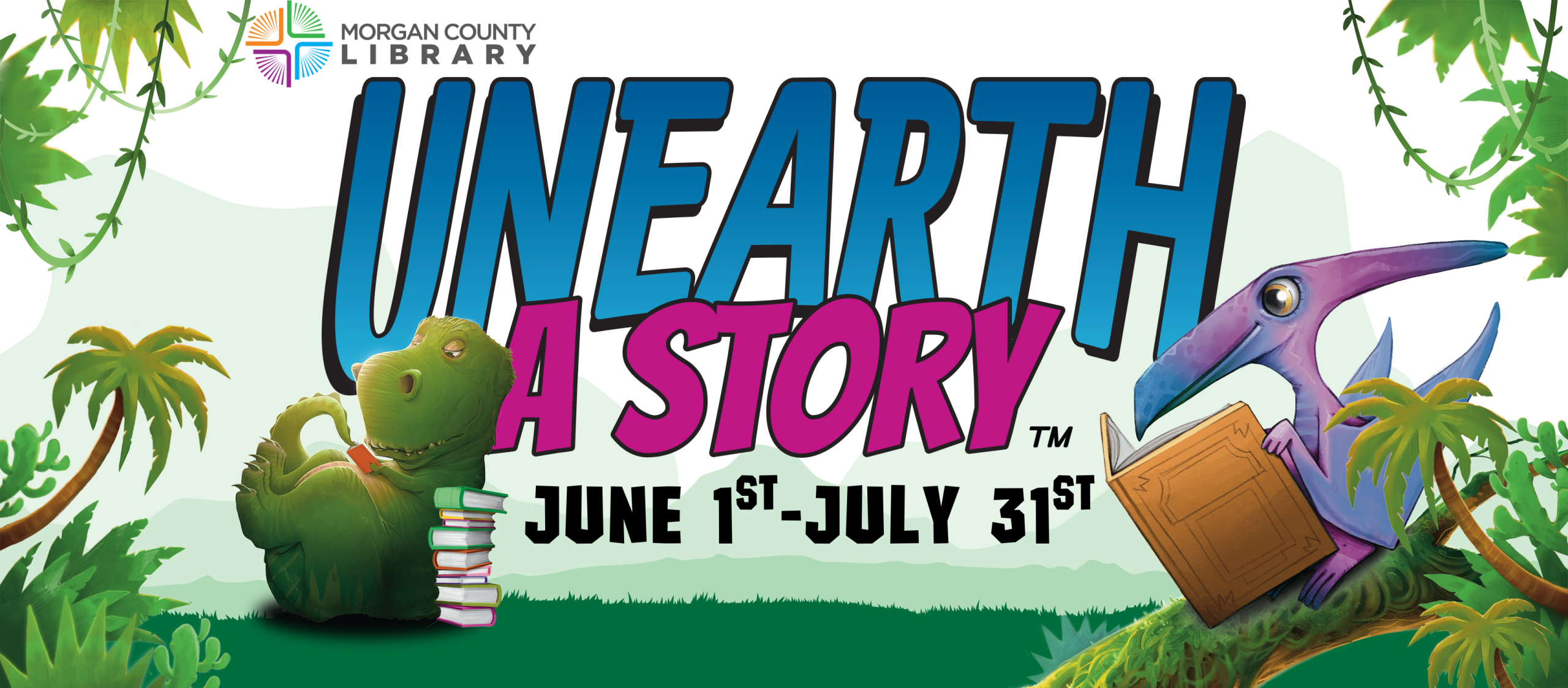
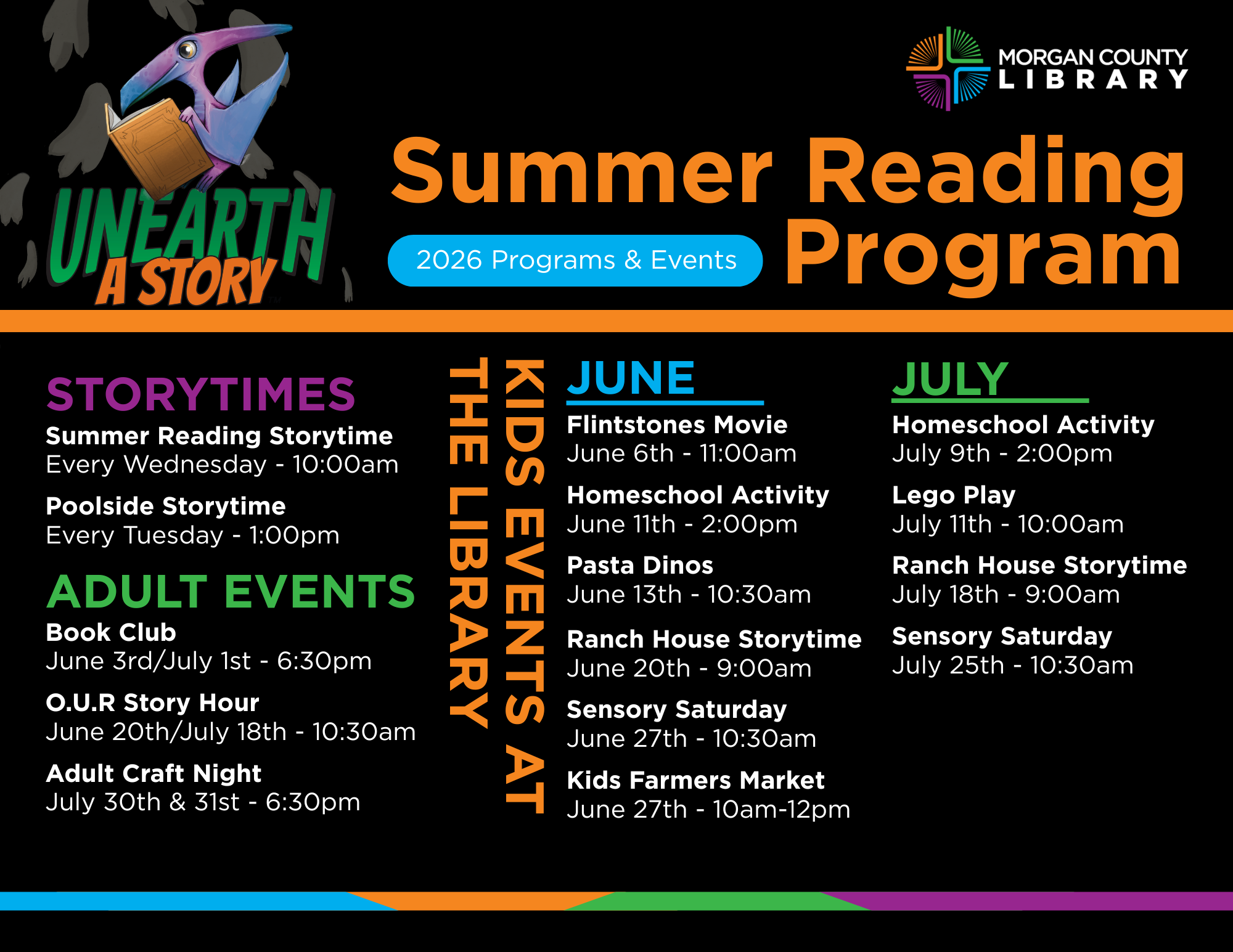
The Morgan County Library Summer Reading Program is back from June 1, 2026 – July 31, 2026! This year’s theme, Unearth a Story, invites readers of all ages to dig into great books, discover new adventures, and uncover hidden treasures all summer long.
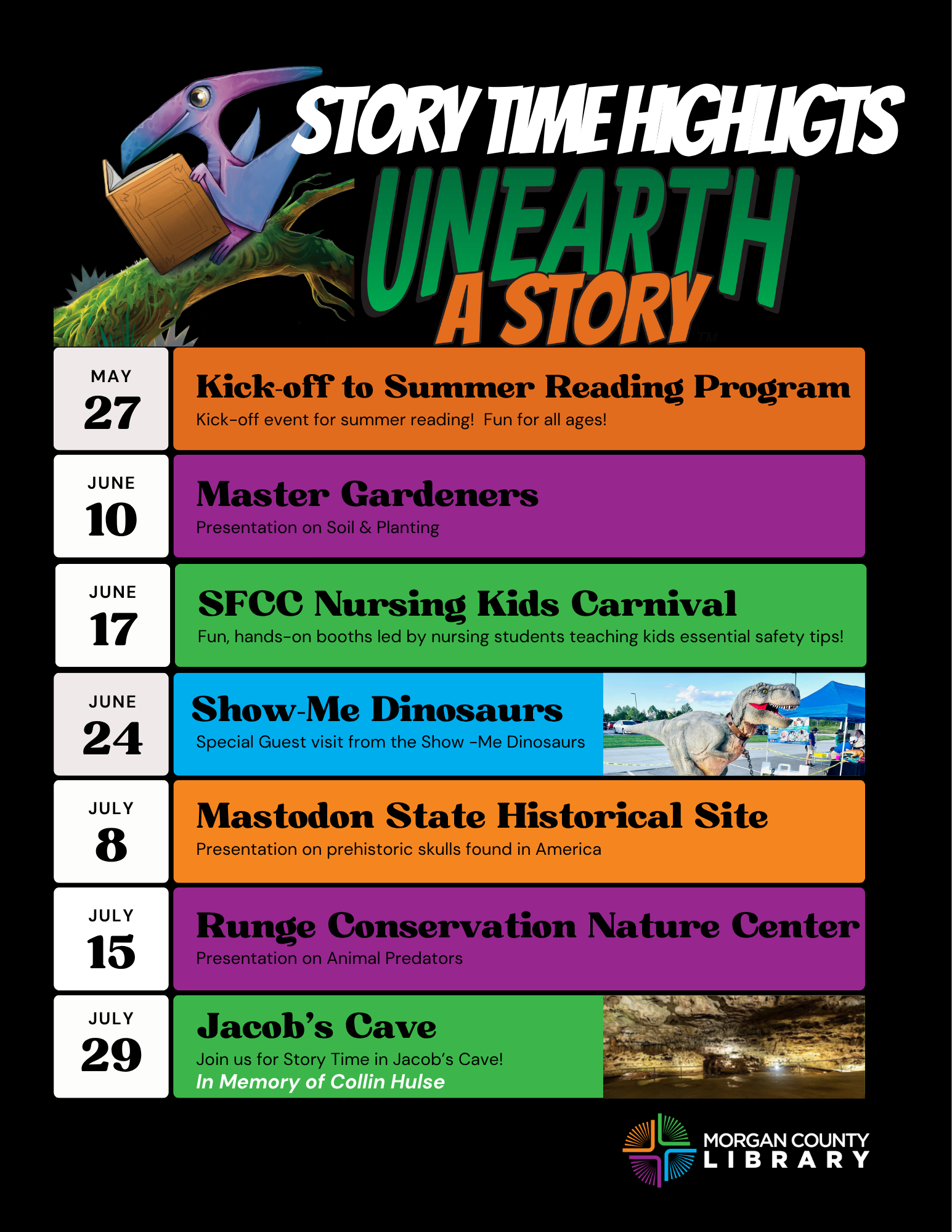
Join us at the library for a variety of fun programs and events, and earn prizes as you read. Children, teens, and adults are all encouraged to participate!
Participants can track their reading using Beanstack. Pre-registration is open now through the Beanstack app. To sign up, download the Beanstack Tracker app from your phone’s app store or visit: https://morgancountylibrarymo.beanstack.org/reader365
Once you’ve registered, be sure to select the Summer Reading Program Challenge to begin logging your reading and earning rewards.
New to Beanstack? Parents or guardians will create the main account and add each family member as a reader, allowing everyone to track their progress in their own challenges.
Get ready to unearth a story and make this summer one to remember at your library!
Get ready for a summer of reading, discovery, and fun with our Summer Reading Program: Unearth a Story! Readers of all ages—kids, teens, and adults—are invited to join the challenge and dig into great books all summer long.
Participants can log their reading through Beanstack, making it easy to track progress and stay motivated. Simply sign up, choose the Summer Reading Program Challenge, and start logging your reading.
As you read, you’ll earn rewards along the way! Kids and teens who reach the halfway point will receive a book. Complete the challenge to be entered for a chance to win a grand prize.
Whether you’re exploring new stories or revisiting old favorites, there’s something for everyone. Start reading, start logging, and see what you can unearth this summer!
How to Use Beanstack
Need help with using Beanstack? Check below for tips and tutorials!
Join a Challenge
After you create an account, you now have access to all of York County Libraries’ Beanstack challenges!
Watch the video below for a brief tutorial.
Video Tutorial: Joining Challenges
- How to Join Challenges
Please Note: Some challenges offer pre-registration. Minutes logged prior to the challenge’s start date will not count towards challenge goals.
Manage & Switch Between Multiple Readers
Your account may have multiple Readers, if you have registered as a family or a group. If so, it is important to always check which Reader’s profile you are viewing before adding to your log.
In some instances, you may have multiple accounts for different Readers. This means that you may need to log in to each account separately.
Watch the videos below for brief tutorials on logging with different account setups.
Video Tutorials: Managing Readers
How to edit, add, and switch between Readers on the App (from the same account)
How to edit, add, and switch between Readers on the App (from a different account)
How to switch between Readers on the Website
To switch between accounts on the website, you will need to log in and out of each account.
Log Your Reading & Activities
Whether you are enrolled in a challenge or not, you can log your reading at any time!
Don’t forget! If you are logging Activities during SummerQuest, each library event or activity you complete counts as 20 minutes of reading. Be sure to add those minutes separately to your challenge log.
Watch the videos below for brief tutorials.
Video Tutorials: Logging Reading & Activities
How to Log Reading
Demonstrates how use the reading timer, log your past reading, and quick log a book as complete on the mobile app.
Tip: Save time logging! Beanstack can scan the ISBN barcode (on the back cover) to easily log your book’s title and author.
How to Log Activities
Demonstrates how to complete activities and fill in text-box answers
Some Activities require a secret code to complete
How to Log Reading Minutes and Books simultaneously
Demonstrates how to log both minutes and books at the same time
Useful for 1000 Books Before Kindergarten participants
View, Edit, or Delete Reading Sessions
Use the Log screen to view all the books that have been recently logged on your account!
When you tap on a book title, several details will appear – including your reading sessions for the book. This is where you can view, edit, or delete any logged sessions.
To Edit a Reading Session:
Tap the Reading session you wish to edit.
Tap the Pencil icon in the top right corner of the screen (see picture).
Click the desired field you wish to edit and enter the correct information.
Click Save.
Video Tutorial: Deleting Reading Sessions
How to Delete a Reading Session
Demonstrates how to easily delete an erroneous reading session on the Beanstack mobile app
Special Guest Sponsors











Summer Reading Program Partners




Summer Reading Supporter